A Beginner's Guide to Git Basics
When you are working on a project alone or in a team, you don’t want someone to make changes that you cannot track, and you definitely don’t want your code to be overwritten or get lost. There are tools , you can use, to make sure you can work on your project without caring about the file loss . Some of them are Mercurial, Apache Subversion, Perforce Helix Core, and the most popular one happens to be Git.
What is Git
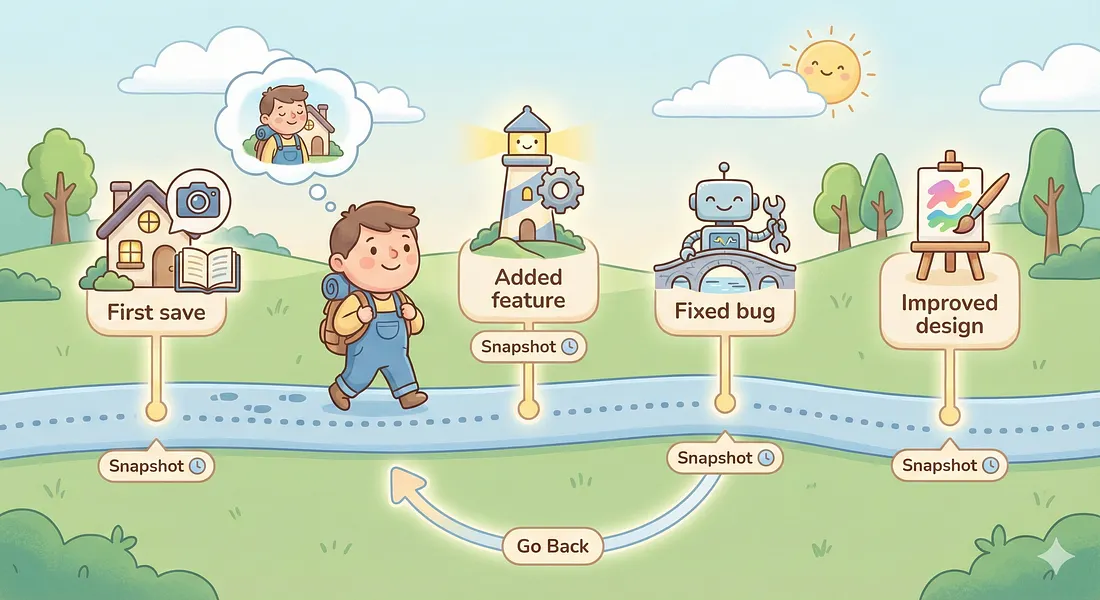
Git is a distributed version control system. It lets you track the changes in your code. Git is made by Linus Torvalds in 2005. Git is like a time-travel machine for your code — it remembers every change you make so you can go back anytime.
Imagine you are writing notes in a notebook
Page 1 → first version
Page 2 → added more content
Page 3 → corrected mistakes
Git is like a notebook that keeps all old pages, not just the latest one.
Why Git is used
Without Git, your code may get overwritten and it will be difficult to collaborate with teammates. Since history is not maintained, you may lose the code means you can’t go back . There is so many problems , let’s see the advantages of working with it .
Keeps a full history of changes
Lets many people work on the same project
You can undo mistakes
You can experiment without fear
That’s why Git is necessary. You can also go back to the previous stable version and start from there or edit it if you want. Basically, files are never lost, and you can restore them.
Git Basics and Core Terminologies
Repository (Repo) - It’s just a place or project folder that Git is tracking, and only this folder will be tracked. A Git repo consists of code files.
Commit - It’s a saved checkpoint, and in the future you can come back to any of these commits with the hash id. It’s like saving each level in a game before clearing it so that you can play it again, just like that.
Branch - A branch is a separate exact copy of the main project, used for testing new features, experimenting, etc. Later on, it will get merged or connected with the main branch.
Main - It is the real one. This is the final and stable one, or what users use.
Common Git Commands
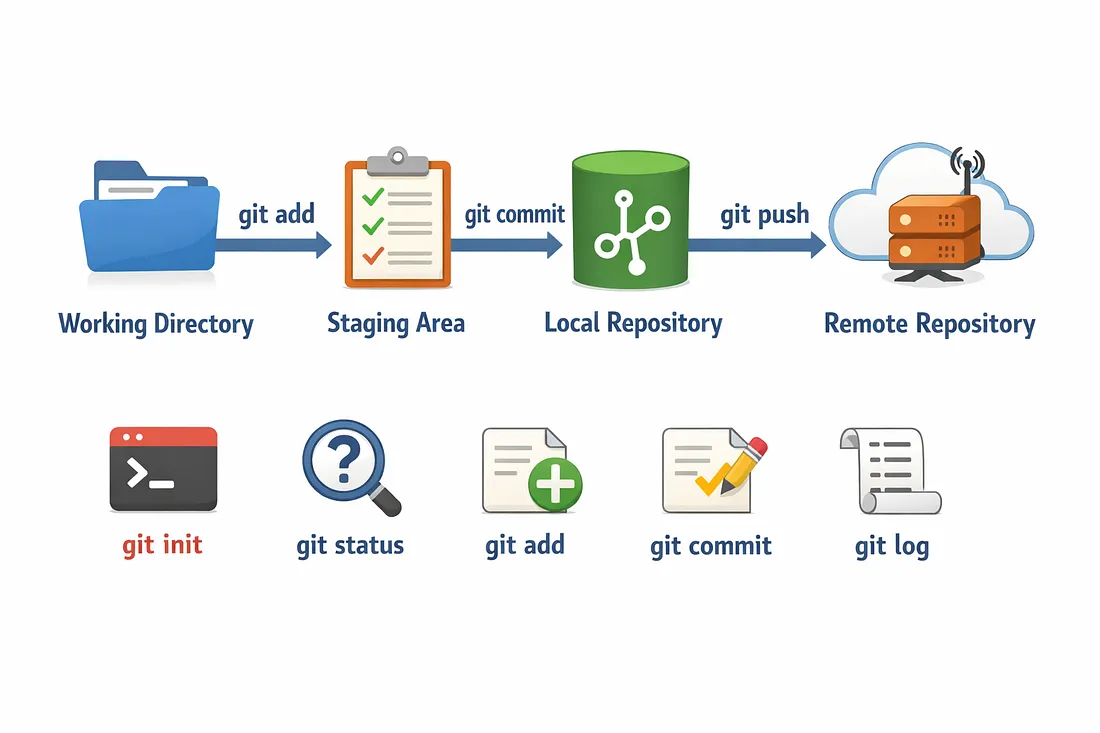
- Git Init
git init
Initializing Git in a folder. Git will now actively tracking it. Behind this .git folder have already been made
- Git add
git add 'filename'
Used to select files that need to be saved . These files will be staged means these are ready to be committed. You can do git add . to add all the files at once.
- git commit
git commit -m 'message'
Save the files which are changed, as checkpoint with a message so that it is easy to figure out the changes later. At each commit , a unique id or hash is generated.
- git push
git push -u origin main
Send local commits to a remote repository to the main branch. From the second time you can directly use git push to commit files because you need to set the upstream only once and yes -u means upstream
- git pull
git pull origin main
Fetch and merge changes from a remote repository from the main or any repo you want. Did you know that you can actually set push and pull from two different repo.
- git status
git status
To see which files are tracked, untracked, or changed.
- git log
git log
See past saves, like old commits, messages, and basically the history.
- git branch
git branch
Provide the branch you’re currently on.
These are the common commands we use during working with git and off course there are more commands which we don’t use generally.


